Showing posts with label iPhone SDK. Show all posts

Thursday, March 10, 2011

Attributed Strings in iOS

Ten months ago when the original iPad shipped, Apple released iOS 3.2, and for the first time, iOS developers had access to NSAttributedString and NSMutableAttributedString, objects designed to hold strings along with font, paragraph, and style information. We no longer had to resort to using heavy UIWebViews or complex Core Graphics calls to draw styled text.

Well, sort of…

On the Mac side of things, NSAttributedString and its counterpart NSMutableAttributedString have been around for a long, long time, as part of Foundation. But, there's also been, for nearly as long, categories on both of these classes in App Kit called the Application Kit Additions which have all sorts of useful additional methods.

These categories provide ways to create attributed strings from various sorts of formatted text documents (RTF, HTML), to create attributed strings by specifying multiple specified attributes, to tweak existing attributes, to draw the attributed string, and to determine the size of an attributed string if it were to be drawn.

In fact, most of the really useful methods for these two classes are contained in these App Kit categories and not in the base classes. Unfortunately, we don't have those categories in the iOS SDK, or even a scaled back version of them. We just have the base classes. That means we have a whopping thirteen methods on NSAttributedString, and another thirteen on NSMutableAttributedString.

Cocoa has luxury-brand attributed strings; Cocoa touch has store-brand generic ones.

Even weirder, NSAttributedString has an init method that takes a dictionary of string attributes, but the key constants for using that method aren't even included in iOS in either the public headers or the documentation. The description of the methods that take these attributes state that the constants are in the Overview section of the documentation, but that's actually only true in the Mac OS X documentation, not the iOS documentation.

In other words, you can't create an NSAttributedString or NSMutableAttributedString using initWithString:attributes: because you don't have the constants you need in order to specify the various attributes. That's not entirely true; you actually are able to use the Core Text counterparts of the NSAttributedString constants , such as kCTForegroundColorAttributeName in place of NSForegroundColorAttributeName, however this isn't actually documented anywhere, and there isn't an exact 1:1 correlation between the NS and CT string attributes (though it's close).

This situation is really odd. Apple went through great efforts to give us all the low-level pieces need to do complex text rendering, but didn't give us higher-level objects to handle most that functionality elegantly. We have the lion's share of all of the low-level Core Text and Core Graphics calls that are available on Mac OS X (still no Core Image, though). Yet, we have to write low-level Core Text and Core Graphics code to do the bulk of even the most common typesetting tasks using attributed strings.

Fortunately, NSAttributedString and NSMutableAttributedString are both toll-free bridged to their Core Foundation counterparts CFAttributedStringRef and CFMutableAttributedStringRef respectively. That means you can create, for example, a CFAttributedStringRef and simply cast it to an NSAttributedString pointer, and then calling NSAttributedString methods on it will work.

Mostly.

There's one gotcha here. On iOS, UIFont and CTFont are not toll-free bridged, even though NSFont and CTFont on the Mac are. You cannot pass a UIFont into a function that expects a CTFont and vice versa.

To get a CTFont from a UIFont, you can do this:

CTFontRef CTFontCreateFromUIFont(UIFont *font)
{
CTFontRef ctFont = CTFontCreateWithName((CFStringRef)font.fontName,
font.pointSize,
NULL);
return ctFont;
}


Notice the name of this method - the word "create" in the function name indicates that the returned CTFont object has been retained for you, and you are responsible for calling CFRelease() on it when you're done with it, to avoid leaking.

Going the other way, from a CTFont to a UIFont is only a little more involved. Here's a category method on UIFont that will create an instance of UIFont based on a CTFontRef pointer

@implementation UIFont(MCUtilities)
+ (id)fontWithCTFont:(CTFontRef)ctFont
{
CFStringRef fontName = CTFontCopyFullName(ctFont);
CGFloat fontSize = CTFontGetSize(ctFont);

UIFont *ret = [UIFont fontWithName:(NSString *)fontName size:fontSize];
CFRelease(fontName);
return ret;
}

@end


Once you have the ability to convert the two font objects into each other, creating attributed strings really isn't that bad. Here's an example category method on NSMutableAttributedString that will create an instance by taking an NSString plus a font, a font size, and a constant representing the desired text justification. It will return an autoreleased attributed string with the text attributes applied to the entire string:

+ (id)mutableAttributedStringWithString:(NSString *)string font:(UIFont *)font color:(UIColor *)color alignment:(CTTextAlignment)alignment

{
CFMutableAttributedStringRef attrString = CFAttributedStringCreateMutable(kCFAllocatorDefault, 0);

if (string != nil)
CFAttributedStringReplaceString (attrString, CFRangeMake(0, 0), (CFStringRef)string);

CFAttributedStringSetAttribute(attrString, CFRangeMake(0, CFAttributedStringGetLength(attrString)), kCTForegroundColorAttributeName, color.CGColor);
CTFontRef theFont = CTFontCreateFromUIFont(font);
CFAttributedStringSetAttribute(attrString, CFRangeMake(0, CFAttributedStringGetLength(attrString)), kCTFontAttributeName, theFont);
CFRelease(theFont);

CTParagraphStyleSetting settings[] = {kCTParagraphStyleSpecifierAlignment, sizeof(alignment), &alignment};
CTParagraphStyleRef paragraphStyle = CTParagraphStyleCreate(settings, sizeof(settings) / sizeof(settings[0]));
CFAttributedStringSetAttribute(attrString, CFRangeMake(0, CFAttributedStringGetLength(attrString)), kCTParagraphStyleAttributeName, paragraphStyle);
CFRelease(paragraphStyle);


NSMutableAttributedString *ret = (NSMutableAttributedString *)attrString;

return [ret autorelease];
}


What about calculating the space needed to draw an attributable string? That's a little more involved, but it can be done. Here are two category methods on NSAttributedStringthat will tell you how much space an attributed string will require when drawn at a specified width or height, which is a useful thing to know when laying out text:

NB(1): This is a new version that's both shorter, and fixes a bug with the original version.

NB(2): A couple of people on Twitter have commented that you should save a reference to your CTFrameSetterRef when calculating height or width and re-use it, because the framesetter will cache those calculations. If you use a new one, you not only have the overhead of a new object, you will also be doing the size calculation twice. I'm planning a future post where I show how to draw attributed strings, and I need to give some thought about how to re-architect the code for that post based on that feedback.

- (CGFloat)boundingWidthForHeight:(CGFloat)inHeight
{
CTFramesetterRef framesetter = CTFramesetterCreateWithAttributedString( (CFMutableAttributedStringRef) self);
CGSize suggestedSize = CTFramesetterSuggestFrameSizeWithConstraints(framesetter, CFRangeMake(0, 0), NULL, CGSizeMake(CGFLOAT_MAX, inHeight), NULL);
CFRelease(framesetter);
return suggestedSize.width;
}

- (CGFloat)boundingHeightForWidth:(CGFloat)inWidth
{
CTFramesetterRef framesetter = CTFramesetterCreateWithAttributedString( (CFMutableAttributedStringRef) self);
CGSize suggestedSize = CTFramesetterSuggestFrameSizeWithConstraints(framesetter, CFRangeMake(0, 0), NULL, CGSizeMake(inWidth, CGFLOAT_MAX), NULL);
CFRelease(framesetter);
return suggestedSize.height;
}


I assume it's only a matter of time before Apple gives us the NSAttributedString UIKit Additions category, or some similar higher-level functionality. In the meantime, any time you have to deal with attributed strings, the best bet is to figure out how to do what you need to do in Core Text and/or Core Graphics (Apple's Programming Guides actually show exactly how to do the most common tasks using both of these frameworks), then wrap a generic version of that code into a category method on NSAttributedString or NSMutableAttributableString.

Monday, March 7, 2011

Design Then Code

Mike Rundle just put up a really nice beginner's tutorial on program iOS SDK applications from scratch. Although I disagree with him pretty violently about whether you should use Interface Builder (no, really, you should use it), it's otherwise a brilliant introduction; one of the best I've seen on the web for beginners.

Tuesday, February 15, 2011

A Couple CGAffineTransform Goodies

Thanks to Core Animation, we iOS programmers tend to use affine transformations (by way of CGAffineTransform) a lot. By being able to combine multiple 2D transformations into a single matrix, we have the ability to do a lot of cool animation effects with only a few lines of code.

Take the following example, which is fairly typical:

    CGAffineTransform transform = CGAffineTransformMakeTranslation(0, -translation);
transform = CGAffineTransformScale(transform, scaleFactor, scaleFactor);
view.transform = transform;


Not bad, right? In just three lines of code, we're able to both scale and translate a view or layer. But in reality, there's actually quite a few operations going on behind these three lines of code. The CGAffineTransformScale() function calls CGAffineTransformConcat() to perform a matrix multiplication operation between two affine matrices. But, as you probably know, you can't multiply a 2x3 matrix by another 2x3 matrix. To multiply affine transformations, they have to be converted back to 3x3 vector matrices first.

On today's devices (even mobile devices), this all takes a trivial amount of processing power. But sometimes, when you're doing a lot of these transformations — say thousand or tens of thousands a second — it can be valuable to be able to avoid that conversion and matrix multiplication.

It just so happens that with certain commonly used CGAffineTransforms, you can cheat. Certain matrices can be joined together without performing matrix multiplication. For example, here are the matrices created by CGAffineTransformMakeScale() and CGAffineTransformMakeTranslation(), respectively:

Equation08           Equation06


Go ahead and multiply those two together. Plug in any number for tx, ty, sx, and sy and run the numbers. I'll wait. Okay, you don't have to. This is what you'll get:
Equation0x

So, if that's the result we're going to get, why bother going through the matrix multiplication in the first place? Why not just populate the matrix with both the scale and translate values right from the get-go? Well, we can. We can also do the same thing with translate and rotate.

This is all there is to it:

static inline CGAffineTransform CGAffineTransformMakeRotateTranslate(CGFloat angle, CGFloat dx, CGFloat dy)
{
return CGAffineTransformMake(cosf(angle), sinf(angle), -sinf(angle), cosf(angle), dx, dy);
}

static inline CGAffineTransform CGAffineTransformMakeScaleTranslate(CGFloat sx, CGFloat sy, CGFloat dx, CGFloat dy)
{
return CGAffineTransformMake(sx, 0.f, 0.f, sy, dx, dy);
}


That's it. It only saves you two lines of code:

    view.transform = CGAffineTransformMakeScaleTranslate(scaleFactor, scaleFactor, 0, -translation);


But, your stack allocation is considerably smaller (one CGAffineTransform instead of two CGAffineTransforms and an intermediate 3x3 array. It also saves you eighteen floating point multiplications and nine floating point additions. 99.9% of the time, that number of operations is going to have no noticeable affect on your application - it's a trivial amount of both memory and FLOPS under most normal situations.

But… if you're doing a lot per second, they can add up and it's nice to know there's a way that you can save yourself a little overhead in some situations.

Tuesday, October 19, 2010

OpenGL ES iOS

I've created a new public project on GitHub for classes, scripts, and projects related to OpenGL ES programming on the iPhone. I'll be slowly consolidating all of my OpenGL ES code snippets, utilities, and sample projects except for the particle generator (which has its own repository) into this location.

Right now, all it has is:
  • Blender export script for Objective-C for Blender 2.49a
  • Blender export script for Objective-C for Blender 2.5+
  • My old OpenGL ES Xcode project template for OpenGL ES 1.1
  • A fairly simple OpenGL ES 1.1 Xcode project
  • A fairly simple OpenGL ES 2.0 xcode project
  • A few OpenGL ES-related categories and classes
  • My old Wavefront OBJ file loader
I'm happy to accept back changes as well as additions.

Tuesday, August 24, 2010

UIImage-Blur

Many moons ago, I wrote convolution kernel for Cocoa. It had convenience class functions to do many different types of filters, including blurring, embossing, outlining, edge detection, horizontal shift, LaPlacian, soften, high pass, etc. Now, this was before Core Image and long before the switch to Intel. I don't remember exactly when I first wrote it, but I'm guessing it was around 2001 or 2002. The method that actually applied the filter to an image used AltiVec if it was available, and if it wasn't, it did a brute force filter on the CPU.

Of course, once the switch to Intel happened, the AltiVec code was no longer was helpful, and then Apple came out with Core Image which includesda convolution kernel and all of the filter settings I had created and more. So, I stopped maintaining the code.

Then, when the iPhone came out and didn't have Accelerate or Core Image, I saw a potential use for the old source code. I had a project early on where I needed to be able to blur an image. So, I blew the dust off the old code. I didn't convert the entire convolution kernel – I didn't want to go through the effort if it wasn't going to work — so I created a blur category on UIImage. And it didn't work.

Pressed for time, I found another solution because I was uncertain the processor on the original iPhone would be able to apply a convolution kernel fast enough for my purposes, but I included the broken code when I released the source code for replicating the Urban Spoon effect. Today, I received an e-mail from a reader who figured out my rather boneheaded mistake. The convolution filter was fine, I just specified the wrong CGImage when specifying my provider while converting the byte data back to a CGImage.

Now, since I wrote that code, Apple has come out with the Accelerate framework for iOS, so it could definitely be made faster. It's unlikely that I will be able to spend the time converting it to use Accelerate unless I need a convolution kernel for my own client work; I've got too much on my plate right now to tackle it. If anyone's interested in doing the full convolution kernel port, you can check out the source code to Crimson FX. It's an old Cocoa project which may not work anymore, but it has, I believe, the last version of the convolution kernel before I gave up maintaining it. It shouldn't be hard to port the entire convolution kernel to iOS in the same manner. Once you get to the underlying byte data, the process is exactly 100% the same (even if byte order is different), and the code to convert to and from the byte data is this UIImage-Blur category.

So, without further ado, I've created a small scaffold project to hold the unaccelerated UIImage-Blur category. Have fun with it and let me know if you use it in anything interesting. If you improve it and would like to share your improvements, let me know, and I'll post it here.

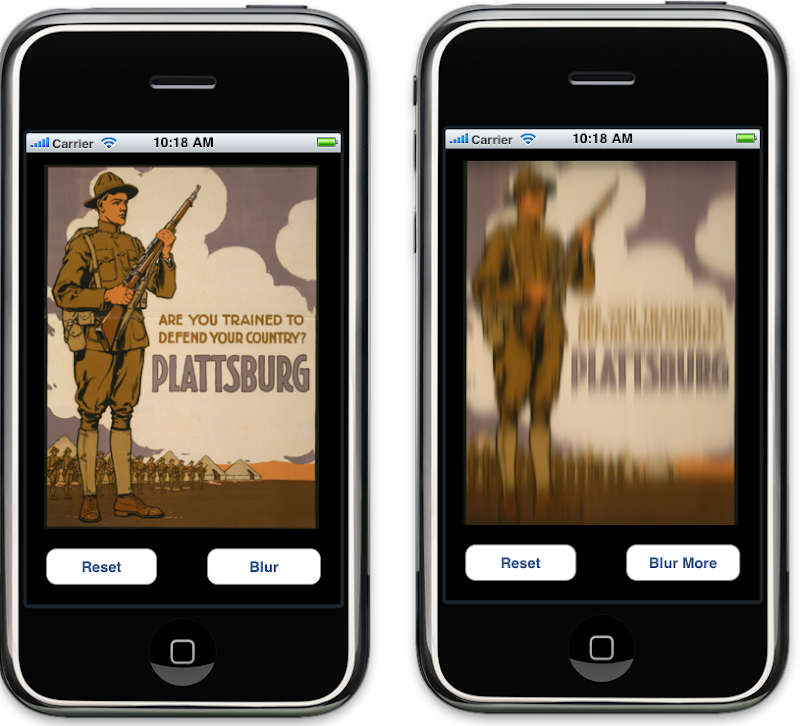
You can find the source code right here. Here's a screenshot of the test scaffold with the original image and after several blurs have been applied. The image is from the Library of Congress Prints and Photographs Collection. Plattsburgh is where I grew up, so this public domain image struck my fancy. I don't know why, but the Army Base was spelled Plattsburg without the ending 'h' even though the city has always been Plattsburgh with the ending 'h'.

Screen shot 2010-08-24 at 10.18.58 AM.png

Thanks to Anthony Gonsalves for finding my error!

Wednesday, August 18, 2010

The Funny Thing About Old Code…

The funny thing about old code, and most new code, is that there's usually room for improvement. Shortly after posting NSString appendToFile:usingEncoding:, I realized I could've kill two birds with one stone by adding a category method on NSData and then calling that method from the NSString category method. That way I'd get the functionality on both classes without repeating logic.

Without further ado:

#import <Foundation/Foundation.h>

@interface NSData(MCFileAppend)
- (BOOL)appendToFile:(NSString *)path;
@end

@implementation NSData(MCFileAppend)
- (BOOL)appendToFile:(NSString *)path
{
NSFileHandle *fh = [NSFileHandle fileHandleForWritingAtPath:path];
if (fh == nil)
return [self writeToFile:path atomically:YES];

[fh truncateFileAtOffset:[fh seekToEndOfFile]];

[fh writeData:self];
[fh closeFile];
return YES;
}

@end

#pragma mark -
@interface NSString(MCFileAppend)
- (BOOL)appendToFile:(NSString *)path usingEncoding:(NSStringEncoding)encoding;
@end

@implementation NSString(MCFileAppend)
- (BOOL)appendToFile:(NSString *)path usingEncoding:(NSStringEncoding)encoding
{
NSData *encoded = [self dataUsingEncoding:encoding];
return [encoded appendToFile:path];
}

@end

Sunday, August 1, 2010

NSOperation Xcode File Template

Although I'm generally averse to using a lot of template or boilerplate code, there are times when it's handy to have file template beyond those that Apple provides. Something I've done a fair amount of lately is to create NSOperation subclasses, and there's enough work involved with setting up an operation that I made an Xcode file template that contains all that setup work.

This template includes a delegate and a protocol and some private methods for communicating with the delegate. Now, when I have lots of NSOperation subclasses in a single project, I'll actually move much of this stuff to an abstract parent class or a category on NSOperation, but templates don't have any way of setting up dependencies, so I've made this self-contained and you can do your own refactoring.

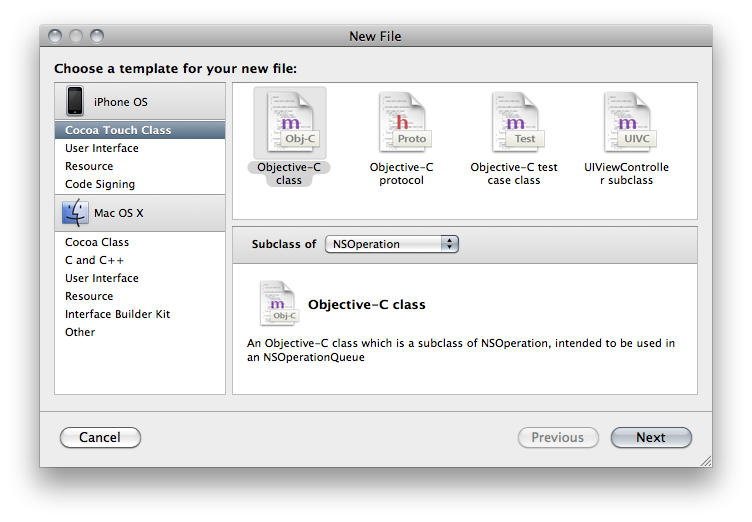
I added this particular template under the Objective-C class icon so that it comes up as a new option under the Subclass of popup menu.

Screen shot 2010-08-01 at 1.53.48 PM.png

You can find the template files right here. The zip file contains the full path to install everything in the correct place, so if you want to install it so that you can use it from Xcode, you would use the following command:
unzip NSOperationTemplate.zip -d /

If you just unzip it regularly, you'll find the actual files nested several folders down as a result of the path information.

I've only touched one existing file, which is a property list that causes the new template to show up in Xcode's Subclass of dropdown menu. The rest are new files, so installing this shouldn't interfere with Xcode in any way. But caveat emptor. You do keep good backups, right?

Hopefully this will be useful to some of you. If you have suggestions for making it better, please let me know.

Friday, July 2, 2010

Pressure Sensitive iPad

One thing that I've wished the iPad had from the beginning was the ability to detect different levels of pressure, similar to a Wacom tablet. That would make it much more useful for things like sketching. I've heard from a few people that the hardware supports it, but I've been skeptical of those claims. How could a capacitative touch device detect pressure? But a few people I talked to at WWDC insisted it was possible with the hardware.

Turns out they were right. This is really cool. I don't know anything about the technology - whether they're really using pressure (I tend to doubt it) or just the relative size of the area being touched, but the results in the video look promising. I also hope the final version can be accomplished with only public APIs somehow.

Thursday, June 17, 2010

Grand Slam!

Apple has set a new record for WWDC video avialability this year, getting them out not even a week after the event ended. Amazing.

Even more amazing, they're not selling them this year. Registered developers can access them for free. Want to know what all the fuss is about with Xcode 4? Go watch the videos.

Wednesday, May 19, 2010

Improved Gradient Buttons

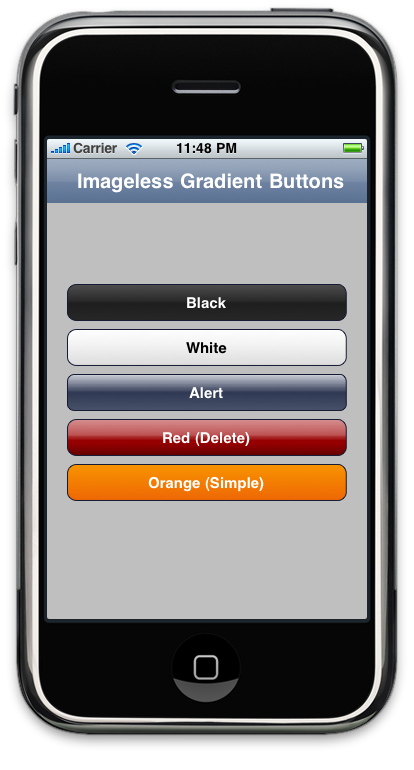
I've been playing around a bit, improving my imageless gradient button class. The new version allows you to specify the gradient for the normal and highlighted state by populating two arrays, one with the colors that make up the gradients and another with the relative location for each color. I've gotten rid of the abstract parent class and individual child classes and all the functionality is now contained in a single class.

Screen shot 2010-05-19 at 11.48.50 PM.png
There are five built-in styles which can be seen in the image above, or you can manually set the gradient to any value you'd like. You can download the source codes from the Google code page. There are no restrictions or limitations on its use.

The easiest way to use these is to add a UIButton instance to your view in Interface Builder, then change the underlying class from UIButton to GradientButton. Because there's no way to create IB palettes for iPhone classes, you'll also have to implement viewDidLoad and set the gradient or use the existing methods there.

Thursday, April 29, 2010

iPad Stencil

KapSoft, the original maker of the iPhone Application Sketchbook, just sent me a new product they've created: an iPad design stencil. It's very similar to their acrylic iPhone stencil, but sized for the iPad and including new UI element stencils such as the popover. If you like to use pencil and paper for early design sketches (I do), this is a handy tool to have.

Wednesday, April 28, 2010

iPhone Barcode Library

Chris of the Yeti Factory has ported my Cocoa Barcode library to the iPhone. This has been something I've been meaning to do for a while, but I'm actually kind of glad someone else did it. I wasn't relishing diving into eight-year old code.

Friday, April 23, 2010

iPad Max Touches

One thing I've been curious about for a while is what is the extent of the iPhone's ability to detect and track multiple touches. On the original iPhone, I've been able to detect and track 5 touches, though my fingers are large enough that I rarely could get it to recognize more than 4 distinct touches.

On the iPad, we've got a much bigger screen that will let all ten fingers touch at the same time without running together.

So, can the iPhone SDK track 10 fingers at once? Yep. It sure can. I wrote a simple program to just record the count of the touches set provided to the four UIResponder touch-related methods, and it had no problem identifying and tracking 10 separate fingers at the same time.

I don't know what the hardware or software limitations are on Apple's multi-touch technology, but it seems to be high enough not to be an issue.

Monday, April 12, 2010

Can We Stop with the "Evil" Thing?

I always enjoy reading James Higgs' commentary on iPhone issues even though we often disagree on issues. That is true for today's piece entitled iPhone OS 4.0: Now With Added Evil. He makes some good points, many of which I disagree with, but, I have one big pet peeve with his post, which is…

…can we please stop with this trend of calling things we dislike or disagree with "evil"?

Evil is baby killing… pogroms… serial killers… the Jonah Brothers. You know, bad shit. Evil is not restricting the choice of languages you can use when you write software for a single software platform from a single vendor. My gosh, people. Talk about skewed, first-world perceptions! This is, at worst, "annoying", "frustrating", or maybe even "bothersome". It's certainly not "evil" in any reasonable sense of the word. It's not even immoral, unethical, illegal or fattening, no matter how much you may dislike it.

(Sorry, James - you're not the only one to do this, yours was just the proverbial straw that broke the camel's back)

I appreciate that people don't like the recent SDK agreement changes, and I even understand why. But let's keep some fucking perspective, can we? We all signed an agreement that said Apple could unilaterally change the terms of the agreement by giving us notice, and we were okay with that because we wanted to be part of the App Store. Now that Apple has actually gone and changed it a few times, people are whinging like the world is ending. The door's not locked, people. Feel free to leave if it gets too onerous for you. If you're not willing to man up the way Dan Grigsby did, then register your complaints using the bug reporter and move on with your life.

I don't always like the decisions Apple makes. I think the app store censorship is sucky, the review process is still too arbitrary, and 3.3.1 is worded more broadly than it should be. But none of those are bad enough to make me leave the platform. I like the platform, and there's still so much opportunity here that I definitely want to stay. So, I've lodged my complaints and have moved on.

I really don't want to get sucked into the argument about 3.3.1, but I need to point out that there is a valid reason why Apple would choose to do this. Even if you don't agree with their decision, you should at least acknowledge that it's not arbitrary (something I've seen as an implicit assumption in many of the rants and arguments against 3.3.1)

If you use Apple's provided tools and frameworks, when you submit your app, all the code that makes up your app is available. Apple controls part of it, and you control the other part. With an intermediate layer, there's a third chunk of code that's a black box. Apple can't get to it and you can't get to it, either. Have you noticed that we're also not allowed to build frameworks for the iPhone the way we can on the Mac. Same exact reasoning.

The changes Apple is having to make to the frameworks to accommodate the multitasking APIs in 4.0 offer a good example of why Apple feels they need to do this. I can't discuss technical details of 4.0, but I will say that by tweaking the frameworks and APIs, Apple has been able to maintain a surprisingly high level of backwards compatibility with older apps. Guess which apps aren't playing nicely with the new multitasking functionality?

Yes, it's about control, but no, it's not arbitrary or without reason. You are welcome to disagree with Apple's judgment, but don't assume the changes ares being done for arbitrary reasons: to spite Adobe or because Steve Jobs is in a bad mood.

Let's look at a hypothetical situation. Let's say that instead of the handful of Flash-generated apps that Adobe snuck onto the App Store, let's imagine that there are 5,000 of them. Let's also say that hypothetically, for some reason, Flash-generated apps don't work with 4.0, and Apple can't reasonably make them work with 4.01. When 4.0 is released and all of those apps break, who's going to end up looking bad?

If you responded with anything other than "Apple", you're delusional or, at least, don't understand customers. Customers don't know or care how their apps were made. They know that yesterday, their apps worked, today they don't and the only difference is that they updated to a new version of the OS. What's the logical assumption for somebody who doesn't know the underlying technical details to make? There's only one: That Apple's new OS sucks. Would it be an accurate assumption? No, but that's the perception people would be left with, and to Apple, customer perception is king.


1- Yes, Apple could work with Adobe to get the Flash Packager changed, but a) Apple has some reason to anticipate that Adobe would drag their heels, since they've dragged their heels for ten years on moving Creative Suite to Cocoa, and b) they'd have to test a good portion of the 185,000 apps on the App Store to even know which third party library was at fault, which just isn't practicable.

Thursday, April 8, 2010

iPhone SDK 4.0

I am in the process of downloading the iPhone SDK 4.0 beta 1. So, like most of you, I haven't actually seen the new APIs, just the presentation by Steve, Phil, and Scott earlier today. If I did know more, I wouldn't be able to tell you because of the NDA.

For the most part, I'm excited about the changes that are coming. I've used Android's "multitasking", and I think that Apple has been 100% right not to just port the workstation model of "multitasking" to the phone. It's hard to say how well these new "multitasking" APIs will meet our needs as developers, but the best that I can tell from the presentation, Apple seems to have struck a good balance. Battery life can really suffer with a traditional "multitasking" approach, as I've discovered using my Nexus One. Only time will tell for sure, but I feel good about these APIs.

Folders look to be implemented well. This is not really a developer feature, so there's not much for me to say there other than it looks like a great solution to a problem that people assume was trivial. It wasn't. Both multitasking and presentation of large volumes of data are very different problems on a small, handheld device than they are on a computer workstation, and I'm glad that Apple's putting some thought into how to add these features intelligently rather than throwing in every feature that any customer requests. Companies that do that are using what I call a "kitchen sink approach" to software development, and the long-term results of that approach are not often great.

GameCenter? I have mixed feelings about it. I probably will never use it as a consumer. I'm just not much of a gamer. I love the creative process that goes into creating games, but just don't spend much time playing, and I don't really care about phony awards and accomplishments. But, I know a lot of people do, and this could be quite a boon for iPhone and iPad gaming.

Unfortunately, there are a number of competing services run by people who jumped into iPhone development early, companies like OpenFeint, who are now finding themselves in the undesirable position of trying to compete with 800 pound gorilla that is Apple. Not that this is a new tactic for Apple, nor is there necessarily anything wrong with what they've done, but it saddens me a little nonetheless.

iAds is another feature that I have mixed feelings about. If you have a free app with ads, this is probably a great thing for you. But, it's just a hard thing for me to get excited about advertisements, no matter how spiffy they look. Well, at least they're not Flash.

Overall, I'm excited and positive about this update. There was one thing about the presentation tough, that I felt was a negative. I thought some of the answers given during the Q&A period were just outright disingenuous. The most blatant case in point was when Steve was asked about distributing apps without the App Store, His response was to point out that Android has a "porn app store that your kids can get to", and then state that Apple "didn't want to go there". Whisky. Tango. Foxtrot?

Kids can get to any number of porn web sites on a Mac, iPad or iPhone.

Apple does absolutely have a right to do this: It's their walled garden. I just wish they'd be more upfront about their reasons when asked rather than giving stupid responses like "think of the children" (which has already become a bit of a joke from its use in censorship discussions). Kids are, generally speaking, more comfortable with technology than their parents. Kids can find porn if they're determined to do so. There's not a thing you can do to prevent it if they decide they want it, but to the extent that things should be done, it should be done by their parents. This is not Apple's job, nor any other corporation's job. It's not even the government's job. It's mine and, if you have kids, yours. It's also not a valid reason to give us the ability to run Apps that haven't been approved by the Mothership.

If Steve had stood up on stage and said "we want our 30% cut, so that's why you can't distribute outside the App Store", it would have felt like it was an honest answer. If he had said "we want to control the experience in any way we can", I would have bought it. I might not have liked it, but those would have felt like honest answers.

The answer we got today felt like a big "fuck you" disguised as a smarmy "we know better than you".

The next time a client gets mad because an ad hoc build won't run for them, I'm going to tell them that it won't work so kids can't get porn. I doubt I'll be able to pull it off as well as Steve did, though.

Saturday, April 3, 2010

Converting iPhone Apps to Universal Apps

Well, the NDA has finally lifted, so we can start talking about iPhone SDK 3.2 and the iPad. The logical starting place seemed to be how to convert your existing applications into a "Universal App" that runs natively both on the iPad and the iPhone/iPod touch. Now, a lot of you have likely already had to figure this stuff out so you could get your updated app on the store today, but for those who didn't go the early adopter route, let's take a few minutes to look at the process. It's pretty straightforward but there are a few gotchas.
Note: There are some additional things you should know, so read this post also before tackling your update.

Targeting All Devices


The first thing you have to do is identify that you want to build your existing application as a universal application. For this article, I'm using the Xcode project from OpenGL ES Particle Generator Application, but I'll try to keep the information general. Note: the following step is not needed if you use Xcode's Update Project Target for iPad option talked about here.

Bring up your Project Info window in Xcode by either double-clicking on your project's root node in the Groups & Files pane or selecting Edit Project Settings from the Project menu and then navigate to the Build tab. Now, the change we're about to make needs to be made to all configurations, so make sure that the Configuration popup menu is set to All Configurations, otherwise you'll only make the change on one configuration.

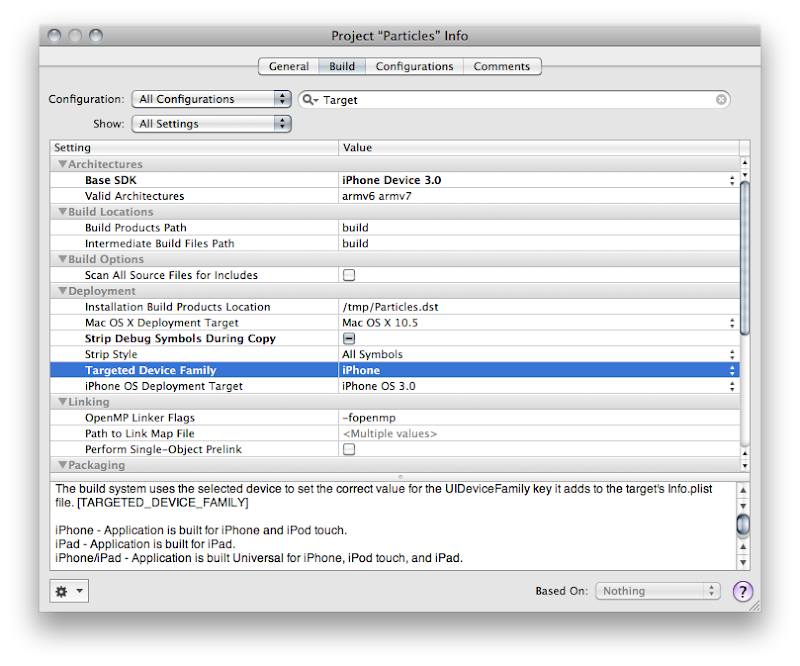
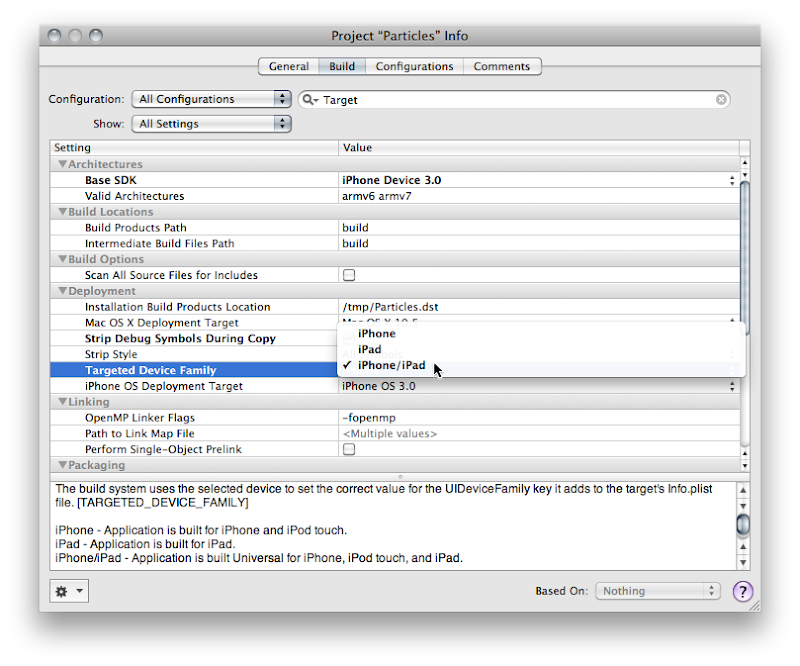
We need to change a setting called Target Device Family, so type Target into the search bar, or just search for that entry manually (it'll be under the Deployment heading). Right now, it should look like this:

Screen shot 2010-04-01 at 10.09.58 AM.png


See how it says iPhone? Yeah, you know what to do. Click on it and change it so it reads iPhone/iPad, like so:

select_target.png


Good! now you're done, right? Most likely, no.

Auditing for Hardcoded Sizes


The next thing you're going to want to do is audit your application to see if you hard-coded the screen size anywhere in your application. You shouldn't have hardcoded those values, but let's face it, we've all done it. A Project Find (⌘⇧F) for 320 and 480 and that should turn up any of those hardcoded values. In the Particle Generator code, I did it in only one place, in code that creates a UIImage of the OpenGL view. The line of code where I did it looks like this:
    CGImageRef imageRef = CGImageCreate(320, 480, bitsPerComponent, bitsPerPixel, bytesPerRow, colorSpaceRef, bitmapInfo, provider, NULL, NO, renderingIntent);

Usually, the fix for this will be obvious. Instead of hardcoding, you want to pull the width and height from the OpenGL view. The code where I did it actually exists on the GLView class, so I can fix it like so:
    CGImageRef imageRef = CGImageCreate(self.frame.size.width, self.frame.size.height, bitsPerComponent, bitsPerPixel, bytesPerRow, colorSpaceRef, bitmapInfo, provider, NULL, NO, renderingIntent);

But, what if what you've hardcoded is the actual size of the view? Then you need to pull the size from the main screen instead of the view. That's easy enough to do.
    UIScreen *screen = [UIScreen mainScreen];
[myView setFrame:[screen applicationFrame]];


Dealing with Different Window Sizes


Most likely your application's one instance of UIWindow is contained in your MainWindow.xib file that gets loaded automatically. Most likely, that Window is hardcoded to 320x480. Now, you might think that you can just go into Interface Builder and set the autosize attributes for the window and it will get resized for you at launch. You would be wrong. There is no automatic check to make sure your window is the right size.

You have to make sure that the window is the right size for the device you're running on. There are, basically, two ways of doing that. If your application is such that you just need to resize the window and your autosize attributes will take care of making everything look nice, then you can just handle this programmatically in applicationDidFinishLaunching: by setting the window's size to the size of the screen, less the status bar andy any other objects controlled by the iPhone OS (this is known as the Application Frame). Doing this looks almost exactly like setting the size of the view above:
    CGRect  rect = [[UIScreen mainScreen] bounds];
[window setFrame:rect];

Now, this is actually a good approach for the Particles application because it has one full-screen view. However, the iPad and the iPhone are really different devices, and there are several UI components available on the iPad that aren't available (at least yet) on the iPhone, such as split views and pop up views. For many applications, especially complex applications using a lot of UIKit views and controls, you're probably going to want to provide completely different NIB file based on which device on which the code is running.

Info.Plist Device-Specific Entries


The one really important nib file in every iPhone application is, of course, MainWindow.xib, and there has to be a way to tell your application to use a different MainWindow.xib for different devices. In fact, there is. For each key that Info.plist supports, such NSMainNibFile, which is used to specify the name of the application's main nib file, you can now specify device-specific entries. If you provide a device-specific entry for the device the application is currently running on, it will use the device-specific value, otherwise it will just use the normal value.

Device-specific keys are exactly the same as the original or default key except the key name is followed by a tilde (~) and then the name of the device in all-lowercase letters. So, to tell our application to load a different nib file for the iPad, we can add a key called NSMainNibFile~ipad and then specify the name of the nib file to use when launching on an iPad. For the iPhone and iPod touch, it will continue to use the default value, MainWindow.xib, but for the iPad, it will use the nib file you've specified in the new, device-specific key.

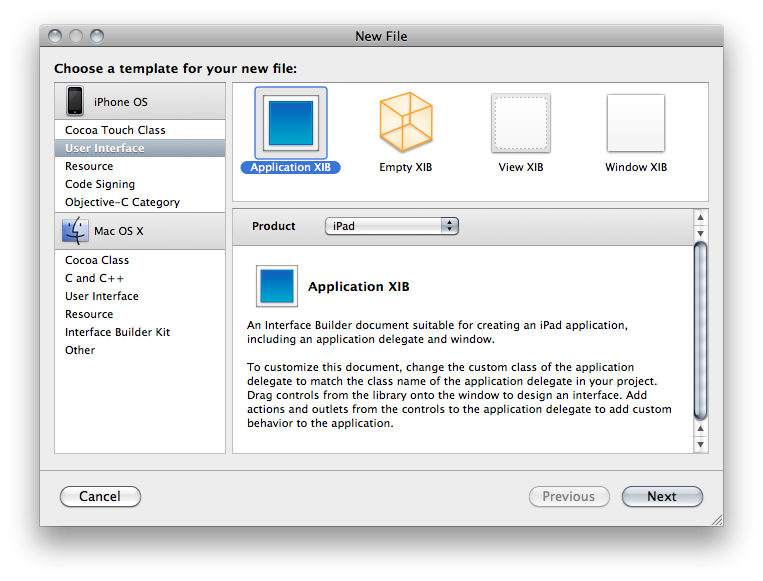
You can add a new version of MainWindow.xib to your project by selecting the Resources group and choosing Add New File from the File menu. From the New File Assistant, select User Interface from under the iPhone OS, then select Application XIB, and make sure you select the right device in the Product drop-down.

Screen shot 2010-04-01 at 10.43.29 AM.png


Make sure you remember to connect all the outlets and actions in this new nib to the same outlets and actions you used in the other nib. Remember, only one of the application nibs will be loaded, so there's no conflict.

For any key in the Info.plist file, you can use this same technique to override the default value with a device specific. You could, for example, have the iPhone version start in Portrait and the iPad version start in landscape, like so:
    ...
<key>UIInterfaceOrientation</key>
<string>UIInterfaceOrientationPortrait</string>
<key>UIInterfaceOrientation~ipad</key>
<string>UIInterfaceOrientationLandscapeLeft</string>
...

Programmatically Determining Device


If you have code that needs to vary depending on whether it's running on the iPad or iPhone/iPod touch, Apple has provided a new macro called UI_USER_INTERFACE_IDIOM() that will tell you that. There are currently two values defined, UIUserInterfaceIdiomPhone and UIUserInterfaceIdiomPad, and this macro will return the value that corresponds to the device being run. So, for example, if you needed to push a view controller onto the navigation stack, but wanted a different nib used for the iPad than the iPhone, you might do this:
    MyController *controller = nil;

if (UI_USER_INTERFACE_IDIOM() == UIUserInterfaceIdiomPad)
controller = [[MyController alloc] initWithNibName:@"MyiPadNib" bundle:nil];
else
controller = [[MyController alloc] initWithNibName:@"MyiPodNib" bundle:nil];

[self.navigationController pushViewController:controller animated:YES];
[controller release];

If you need finer-grain control, and need to know exactly which device, there's no official, supported way to determine the exact device. The vast majority of the time you you think you need to know the device, you don't actually need to know the device, you just need to know which features are supported. Even though you can find code around the web that will determine the device based on UIDevice, you really shouldn't base your logic on that because such code can be fragile since you don't know what future devices will exist, or what features they will have.

In cases like the Image Picker, Apple provides a way to determine which features are available on your device, such as whether there's a camera, and whether that camera supports video. When Apple hasn't provide a specific check or test, what you can do is use NSClassFromString(), which (as is probably obvious from the name) creates a Class instance based on the name of a class contained in a string. If this returns nil, then you know the class you're asking about isn't available. You can wrap your code that uses classes that aren't available everywhere in these checks and make code that works correctly on all devices, and will continue to do so in the future (for the most part - it's never possible to 100% future-proof code). Here's an example of checking for the existence of the UISplitViewController, which is a new class only available on the iPad:
    Class splitViewController = NSClassFromString(@"UISplitViewController");
if (splitViewController)
{
UISplitViewController* mySplitViewController = [[splitVCClass alloc] init];
// ... configure, use, then release
}

You can do something similar with C functions by checking if the function is NULL For example, one of the frameworks added with iPhone SDK 3.2 is CoreText.framework. If we wanted to use the function CTFontCreateWithName() to create a new font using that framework, we could wrap the logic in an interface idiom check, like above, or we could just check to see if the function we want to use exists by seeing if the symbol CTFontCreateWithName is NULL at runtime, like so:
    if (CTFontCreateWithName != NULL)
CTFontFontRef myFont = CTFontCreateWithName(@"Comic Sans", 14.0, NULL);


Go, Go, Gadget iPad, Go!


Well, that pretty much covers the basics you'll need to convert your existing iPhone apps to Universal Apps. The more complex your app, the more likely you'll want to consider doing separate iPad and iPhone applications. I'll show how to add another target to your Xcode project so you can generate two applications from the same project in a future post. For many apps, however, this should be enough to get you porting away, so port away!